

Digital Catalog Design Guide in Microsoft PowerPoint: Turning Slides into Powerful Sales Tools
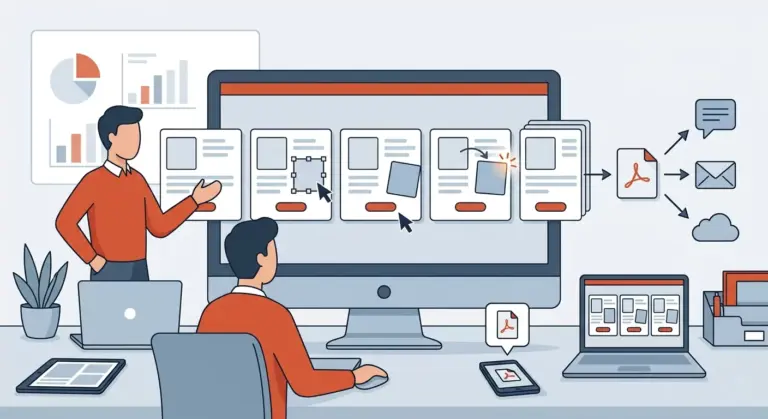
Many think PowerPoint is only for classroom presentations or boring office meetings, but the truth is that PowerPoint is one of the most accessible and fastest tools for creating interactive B2B catalogs. If you are a sales manager who wants to quickly change prices or product layouts without needing complex graphic knowledge, this article is for you. Here, you will learn how to turn a PowerPoint file into a stylish digital catalog that no one will believe was made with this program.
Why is PowerPoint a Treasure for Sales Teams?
Ease of editing is its greatest advantage. You can design a professional Template and provide it to the sales team to update the catalog daily based on stock availability. Also, the ability to export to PDF while maintaining all links makes it a standard tool for sending via email and messengers.
Section 1: Changing Mindset from "Slides" to "Catalog Pages"
The first step is changing those usual boring dimensions:
- Custom Slide Size: PowerPoint defaults to 16:9 (Widescreen). If you want your catalog to look like a book or printed catalog, go to the Design tab, and in the Slide Size section, set the dimensions to A4 or Custom (e.g., vertical for mobile).
- Using Slide Master: This part is vital. Instead of copying the logo onto every slide, go to the View tab and then Slide Master. Anything you place here will be locked across all slides and won't be accidentally moved while editing products.
Section 2: Layout and Visualization (Professional Order)
To ensure your catalog doesn't look like a "presentation," follow these tips:
- Remove Bullet Points: Never use bulleted lists in a catalog. Instead, use colored boxes and icons to display product features.
- SmartArt with Caution: Use SmartArt tools for displaying processes, but coordinate their colors with your brand identity so they don't have a "default" look.
Section 3: Interaction and Clickability (Action Settings)
PowerPoint is very capable of creating links:
- Hyperlinks: Select any image or text, press Ctrl + K, and enter the website link or WhatsApp page.
- Action Buttons: You can create buttons that take the user back to the "Table of Contents" or to the "Last Page" (Contact Us) with a single click.
Section 4: Optimized and Low-Size Output
Exporting in PowerPoint has a specific trick to prevent file sizes from exploding:
- Compress Pictures: Before saving, click on an image, go to the Picture Format tab, and select Compress Pictures. Choose the Web (150 ppi) option to significantly reduce the file size.
Technical Summary & Implementation Checklist: PowerPoint

Here is a summary of the technical steps for building a standard and lightweight catalog in PowerPoint:
1. Adjusting Dimensions and Page Orientation:
- Path: Design > Slide Size > Custom Slide Size
- Set Orientation to Portrait (Vertical) for mobile-friendly catalogs.
2. Managing Fixed Elements (Logo and Header):
- Path: View > Slide Master
- Place fixed elements on the Master Slide (the largest slide in the left column).
- Click Close Master View to return to the design environment.
3. Smart Image Compression:
- Select an image on a slide.
- Path: Picture Format > Compress Pictures
- Uncheck "Apply only to this picture" to apply it to the entire catalog.
- Select the Web (150 ppi) option.
4. Creating Navigation Buttons (Smart Table of Contents):
- Select text or a shape.
- Shortcut: Ctrl + K
- Select "Place in This Document" to link to internal slides (e.g., returning to the index).
5. Final Optimized Output for WhatsApp:
- Path: File > Export > Create PDF/XPS
- Click the Options button.
- Ensure "Document structure tags for accessibility" is checked for better link readability.
- Select "Minimum size (publishing online)" for the smallest possible file.
Practical Checklist: Microsoft PowerPoint / Google Slides
Ideal for: B2B sales catalogs and quick corporate presentations.
A) Slide Master
- [ ] Template Design: Lock fixed text and image layouts in the Slide Master so elements don't shift during editing.
- [ ] Aspect Ratio: Set the aspect ratio to 16:9 (Wide) for compatibility with most screens.
B) Multimedia Optimization
- [ ] Video Embed: Link product introduction videos from YouTube or Aparat to keep the file size low.
- [ ] Compress Pictures: From the Picture Format menu, compress all images for Web (150 ppi).
Read More
لنوس، پلتفرم انتشار کاتالوگ و نشریات تعاملی
2026 Digital Catalog Design Engineering; The Checklist to Turn Your Catalog into a Sales Machine!
Product Page Layout Design Techniques in Smart Catalogs: Arranging for Maximum Conversion Rates
Free Digital Catalog Design: Best AI Tools and Ready-Made Templates for Content Production
لیست فنی عکاسی محصول برای کاتالوگ دیجیتال: بهینهسازی وضوح، فرمت و سئو تصاویر


